Field guide · Underwater color
DJI Action Underwater Color Correction (Complete Guide)
Learn how to improve underwater colors on DJI Action cameras. Discover camera settings, shooting techniques, editing workflows, and AI restoration methods.
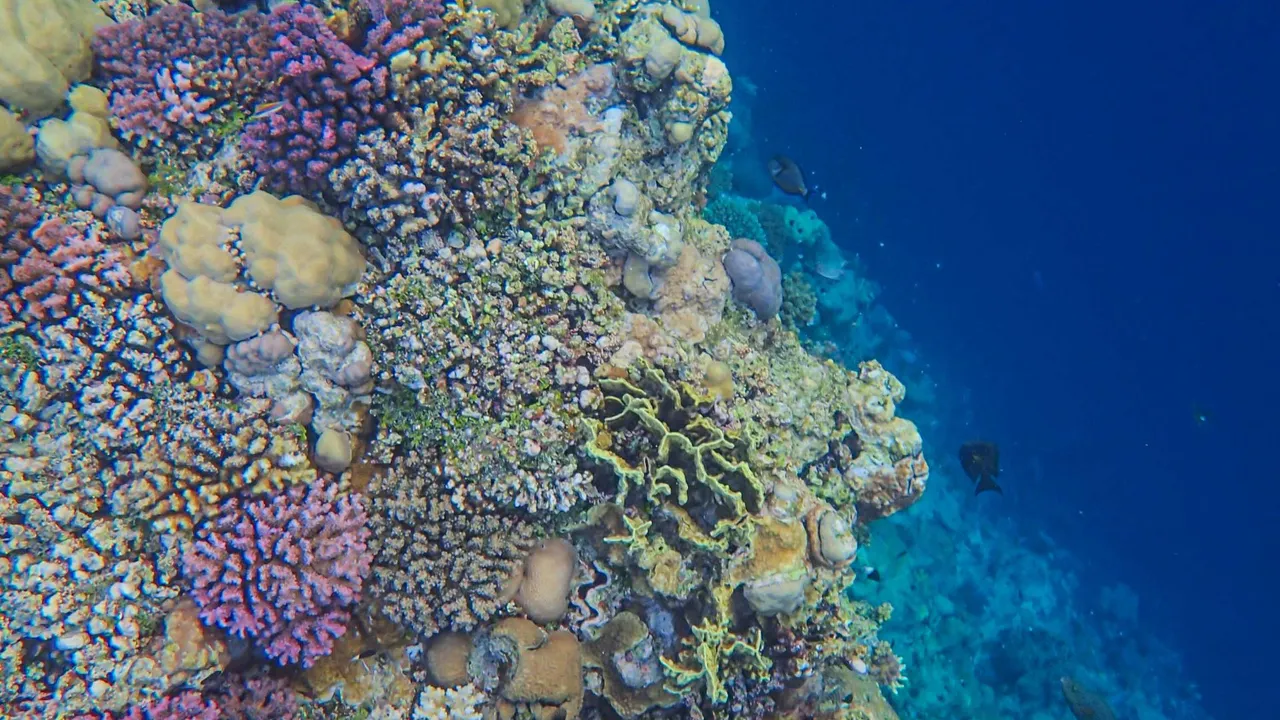
Your DJI Action footage looked incredible on the camera’s screen underwater — then you got home, played it back on a bigger display, and everything had turned blue or green. The reef that glowed in person came back flat and cold, and no amount of brightening seems to bring the color life back.
This is one of the most common experiences for action-camera divers, and it is not a fault in the camera. Water removes warm color before it ever reaches the sensor, so your files arrive with a heavy cast built in — the full explanation is in Why Underwater Photos Look Blue. The good news is that DJI Action cameras handle underwater color better than most, and with the right settings in the water and a sensible edit afterward, you can get most of that color back.
This guide is specifically for DJI Action shooters. It covers why the color disappears, the camera settings that matter underwater, how to capture cleaner footage, and how to restore what you already shot. For a broader look at the editing methods themselves, our guide on how to restore underwater photos goes deeper on each, and for the full gear setup — housing, filters, lenses, and lights — see our DJI Osmo Action underwater guide.
Why DJI Action Photos Lose Color Underwater
Sunlight is a full mix of colors, but water does not treat them equally. It absorbs the warm, long-wavelength end of the spectrum first, and the effect adds up fast with distance. NOAA has a clear explainer on how far light travels in the ocean, and the short version matters for every shot you take:
- Water absorbs red light. Red is gone within the first few meters, followed by orange and then yellow. What survives is blue-green — the cast you see.
- Distance matters as much as depth. Every meter of water between your lens and the subject filters more color, so a subject three meters away loses more warmth than one right in front of the lens, even at the same depth.
- Depth matters too. The deeper you go, the less warm light remains in the water at all, so there is less for the camera — or any edit — to work with.
- Blue versus green water. Clear tropical water pushes the cast toward blue; coastal or plankton-rich water scatters light and pushes it toward green, often with more haze.
The physics is the same for any action camera — if you shoot a GoPro, our GoPro underwater color correction guide covers that system. DJI’s recent models help in one specific way: a larger sensor gathers more light in the dim, contrast-flattened conditions below the shallows, and a capable auto white balance recovers a surprising amount of color on its own. That head start is real, but it does not change the underlying rule — the more water between you and your subject, the less color survives — which is where your settings come in.
Best DJI Action Camera Settings for Underwater
DJI Action cameras perform well straight out of the box, especially in shallow water where light is stable. As conditions change, though, manual control gives more consistent results. These are the settings that matter most underwater, and when to use each.
- White balance. This is the most important control. DJI’s auto white balance is genuinely good in shallow, stable light and often produces natural color with no filter. In deeper or changing conditions, lock white balance manually so it does not drift mid-clip, and warm it (a higher Kelvin value) to counter the blue. There is no dedicated underwater preset, so adjust by eye on the screen.
- Color profile. You get a choice between Normal and D-Log M. Normal gives ready-to-use color and is the better default for most divers who want usable footage without grading. D-Log M records a flat 10-bit file with the most grading latitude, but it needs a color grade to look right — DJI publishes matching D-Log M to Rec.709 LUTs on the Osmo Action download page. If you do not grade your footage, stay on Normal. Many DJI models also include a Color Recovery option that adds warmth automatically; it can help in a pinch, but turning it off gives you cleaner, more predictable files to correct yourself.
- Exposure. Lock exposure when you can. Manual control over ISO and shutter keeps brightness steady as you move between bright shallows and darker depths, and prevents the image from hunting. Keep ISO as low as conditions allow to limit noise.
- Resolution. Shoot 4K for the most detail and the most flexibility to crop or stabilize later. It is the sensible default unless storage or battery is tight.
- Frame rate. Use 50 or 60fps for smooth motion and the option to slow clips down. In deeper or low-light water, dropping to 24, 25, or 30fps lets more light reach the sensor per frame and keeps footage cleaner. Match the base rate to your region (25/50 or 30/60).
- RAW photos. For stills, enable RAW (DNG) if your model supports it — the Action 4 and Action 5 Pro do. RAW holds far more color information than JPEG, which is exactly what you want when recovering warm tones in editing.
- Image stabilization. DJI’s RockSteady and HorizonSteady work well underwater and smooth out surge and finning. Be aware that stabilization crops the frame slightly and analyzes motion to do its job, so on very slow, careful shots you may not need the strongest setting. DJI’s support pages document the current stabilization modes for your model.
One practical note before you dive: check your camera’s depth rating. The Osmo Action 5 Pro, for example, is rated to 20 m on its own and 60 m with the dedicated waterproof housing, per DJI’s specifications. Older models are rated shallower, so confirm before you descend. Some models also show an on-screen pressure and depth readout, which is a useful reference on a snorkel or free dive, and you should always keep the lens cover and port covers sealed before entering the water.
How to Capture Better Underwater Photos
Settings help, but technique in the water does more for your color than anything you do afterward. Every habit below puts more real color into the file.
- Get closer to your subjects. The single most effective thing you can do. Less water between the lens and the subject means less color filtered out. Action cameras have wide lenses, so you often need to be closer than feels natural.
- Shoot during good visibility. Clear water means less scattering, better contrast, and truer color. If visibility is poor, get even closer and keep your expectations realistic.
- Use a video light. A light held close to the subject puts full-spectrum light onto it before the water can filter anything out. This is the most reliable way to get true reds, especially for close and macro work at depth. Skip it in bright, shallow water where natural light is still strong.
- Avoid backscatter. Keep any light off the column of water directly between the lens and the subject, or you will light up suspended particles into a snowstorm of specks. Positioning the light out to the side is the usual fix.
- Shoot slightly upward toward the light. Angling up toward the surface puts more available light and color behind your subject and gives cleaner separation from the background, while shooting downward at the seabed tends to look flat and dim.
- Understand natural light’s limits. No setting recovers a color the water has already absorbed. Past a certain depth and distance, the red is simply gone, and the honest fix is to get closer, add light, or accept a bluer look. Dive training such as PADI’s Digital Underwater Photographer course teaches this shoot-and-adjust discipline in the water.
How to Restore DJI Action Underwater Photos
Even with good technique, most underwater footage benefits from a color pass afterward. Here are the main methods, with their trade-offs.
- White balance adjustment. The foundation of every fix. Warming the image and correcting the green-magenta tint neutralizes most of the cast. It is quick and works in almost any editor, but on a deeply washed-out shot there is only so far it can go.
- Lightroom. The capable all-rounder. Temperature, Tint, HSL, and Dehaze handle DJI files well, batch tools apply one correction across a whole dive, and RAW gives the most latitude. The trade-off is a learning curve and a subscription. It is the strongest choice if you want control over a large set of images.
- Photoshop. The specialist. Layers, masking, and healing tools fix problems sliders cannot — treating a subject separately from the background, or painting out stubborn backscatter. It is slow for batches and overkill for routine color work, so most divers use it only on standout shots.
- AI restoration. The fast route. A tool trained on underwater images estimates the color the water removed and rebuilds a natural result, often in one step and across a whole batch. It works best when the photo still holds some color detail and cannot invent a channel that was never captured.
For a full breakdown of these tools and where each fits, see our comparison of the best underwater photo editor; white balance is the correction that underpins all of them.
Using JellyFix
JellyFix is one AI option built specifically for underwater restoration. It is our own app, so rather than oversell it, here is where it fits for DJI Action shooters and where it does not.
- Designed for underwater. Its AI is trained on underwater images, so it estimates the warm color the water removed and rebuilds a natural result without you moving a slider.
- Mobile workflow. It runs on your phone, which suits the way most action-camera users offload and review footage — no desktop required.
- Offline AI processing. Because it works on-device, you can restore photos on the boat or at a remote lodge with no signal, and your images never leave your phone.
- One-tap restoration. Open a photo and, in most cases, you are done, and it can process a batch so a whole dive comes out looking consistent.
Limitations: JellyFix is a restoration tool, not a full editor. It does not offer layers, precise masking, or the frame-by-frame control of Lightroom or Photoshop, and like any AI approach it recovers less from a badly washed-out shot than from one that still holds some color. It is aimed at photos rather than a RAW-based grading pipeline. Many divers use it for a fast first pass and reach for a desktop editor on the shots that deserve extra work. You can see example results in the before-and-after gallery and read more about the app on the about page.
Comparison Table
For restoring DJI Action photos, here is how the three main editing routes compare on what matters most.
| Editor | Ease of Use | Time Required | Mobile Support | Offline Support | Batch Editing | Best For |
|---|---|---|---|---|---|---|
| Lightroom | Moderate | Moderate | Yes (mobile app) | Yes (desktop) | Yes | Full control and correcting a whole dive |
| Photoshop | Low (advanced) | Slow | Limited (iPad) | Yes | Limited | Detailed fixes and backscatter removal |
| JellyFix | Very high | Very fast (one tap) | Yes (phone) | Yes | Yes | Fast, dedicated restoration on your phone |
Conclusion
Getting good color from a DJI Action camera underwater comes down to two things working together. In the water, put as much real color into the file as you can: get close, shoot in good visibility, lock your white balance and exposure when conditions change, add a video light at depth, and enable RAW for stills. Afterward, correct what remains — a quick white balance pass, a full edit in Lightroom or Photoshop, or a one-tap AI restoration, depending on how much time and control you want.
No single workflow is right for everyone. A travel diver reviewing clips on a phone will lean on fast, offline tools; a photographer building a portfolio will want the control of a desktop editor. The best approach is to try a few on your own footage and keep the one that fits your diving. For more guides on underwater color and technique, explore OceanDimana.
Field notes
Frequently asked questions
Does DJI Action shoot RAW photos?
Why are my DJI Action photos blue?
Should I use Auto White Balance underwater on a DJI Action?
Can Lightroom fix DJI Action underwater photos?
Does JellyFix support DJI Action images?
Do I need a red filter for a DJI Action underwater?
What is the best white balance setting for DJI Action underwater?
Can AI recover underwater colors from DJI Action footage?
Is a dive light necessary with a DJI Action?
How can I reduce backscatter with a DJI Action?
Underwater color science
Continue Learning
Why Underwater Photos Look Blue
The science behind the blue-green cast, and why water steals warm color with depth and distance.
Read moreHow to Restore Underwater Photos
A beginner's walkthrough of every way to bring natural color back, from in-camera technique to AI.
Read moreBest Underwater Photo Editor
Compare Lightroom, Photoshop, Capture One, and AI editors to find the workflow that suits your diving.
Read moreGoPro Underwater Color Correction
How to get better color out of underwater footage and photos shot on a GoPro.
Read more