Field guide · Underwater color
Best Underwater Photo Editor (2026 Guide)
Compare the best underwater photo editing software — Lightroom, Photoshop, Capture One, and AI editors like JellyFix — to find the right workflow.
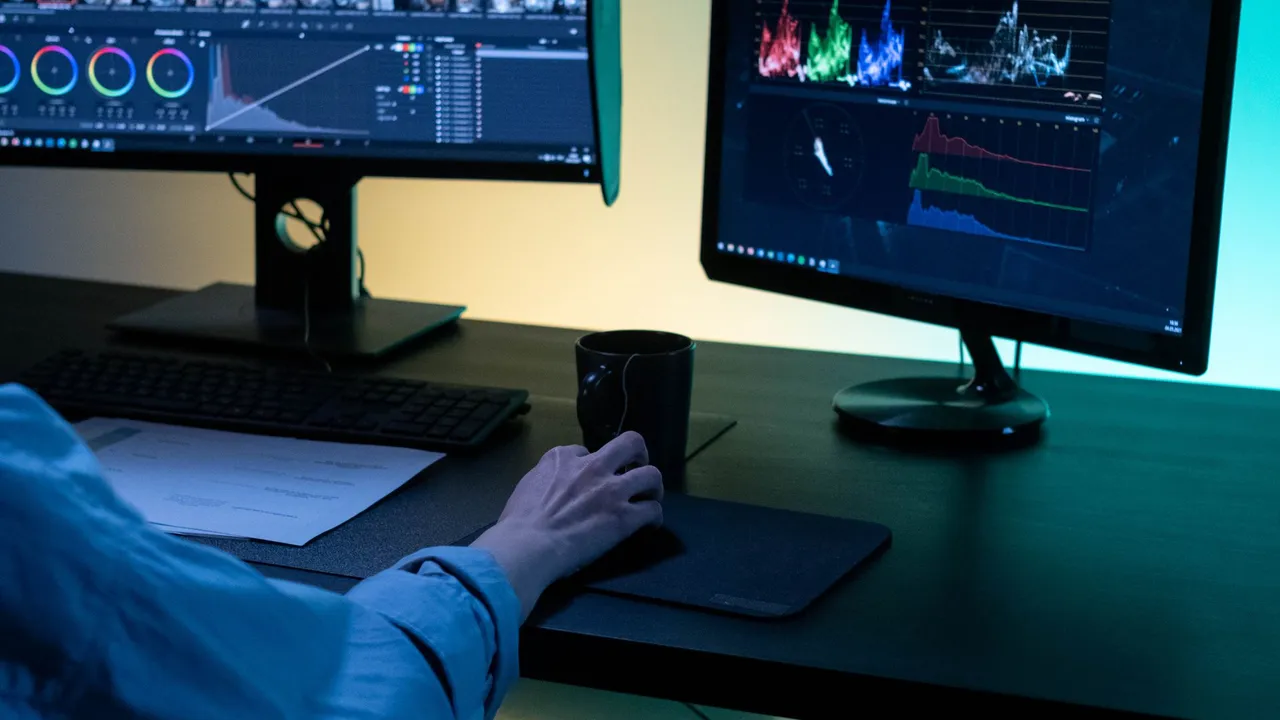
Once you understand why underwater photos lose their color, the practical question follows quickly: which software should you use to bring it back? There are more options than ever in 2026, from full professional editors to phone apps built for a single tap, and the right one depends entirely on how you shoot and how you like to work.
Editing an underwater photo is not quite like editing one taken on land. Three things make it its own discipline. Water absorbs the warm end of the spectrum with depth and distance, so your files arrive with a heavy blue or green cast and little red left to work with — the physics is covered in Why Underwater Photos Look Blue. White balance therefore does far more heavy lifting than it does topside, often swinging further than a normal photo would ever need. And suspended particles scatter light back at the lens, leaving a low-contrast haze and bright specks — backscatter — that a good editor has to cut through.
A tool that handles all of that well is worth more to a diver than a long feature list. If you want the full picture of how these corrections work, our guide on how to restore underwater photos walks through the methods; this article compares the software you would actually use to apply them.
What Makes a Good Underwater Photo Editor?
Before comparing specific tools, it helps to know what actually matters for underwater work. These are the features worth weighing, roughly in order of importance:
- White balance control. The single most important tool underwater. Look for Temperature and Tint sliders with enough range to pull a deep-blue image back to neutral, plus an eyedropper for sampling a neutral reference such as sand or a dive slate.
- HSL adjustments. Hue, Saturation, and Luminance controls let you rescue individual colors — recovering blues without oversaturating everything, or taming a stubborn cyan — after white balance has done the broad work, which is why that order matters.
- RAW support. RAW files hold far more color information than JPEG, which gives every correction more room to recover warm tones cleanly. If you shoot RAW, full RAW support is essential.
- Batch editing. A dive trip can mean hundreds of images shot in similar conditions. The ability to correct one and apply it across many saves hours of repetitive work.
- Dehaze. A dedicated dehaze or clarity control cuts through the veil that backscatter leaves behind, restoring contrast the water flattened.
- AI tools. Automated color estimation can do in one step what takes minutes by hand, which matters most if you are new to editing or working through a large batch.
- Ease of use. A capable tool you find frustrating is a tool you will not use. Be honest with yourself about how much you actually want to learn.
- Mobile support. Editing on a phone or tablet means you can turn photos around on the boat or at the lodge, not weeks later at a desk.
- Offline editing. Dive destinations are often remote, with little or no signal. Software that works without a connection — and keeps your images on your device — is a genuine advantage.
Two of these pull against each other. The most powerful tools tend to demand the most time and learning, while the fastest tools give up fine control. Most of the choice below comes down to where you want to sit on that line — and you are allowed to sit in more than one place, using a quick tool for most shots and a deeper one for the few that earn it.
No single tool tops every one of these, which is exactly why the “best” editor is personal. Here is how the main options compare.
Adobe Lightroom
Lightroom is the default choice for a lot of underwater shooters, and for good reason: it balances serious capability with a manageable workflow, and it handles a whole trip’s worth of images gracefully. Adobe’s own documentation on image tone and color covers the core controls you will lean on.
- Strengths: excellent white balance, HSL, and Dehaze; strong batch editing and library management; fully non-destructive edits; a huge ecosystem of presets and tutorials; and capable desktop and mobile apps that sync your library between them.
- Weaknesses: the color tools, while very good, are general-purpose rather than tuned for water, so heavy casts take some manual work; it is easy to over-correct before your eye is trained; and it is subscription-only.
- Best for: divers who edit regularly, shoot RAW, and want full control over a large set of images.
- Learning curve: Moderate. White balance and Dehaze get you a good result in a couple of minutes; the rest rewards practice.
- Pricing: Subscription only, bundled with Photoshop in Adobe’s Creative Cloud Photography plan. There is no one-time purchase.
In practice, most underwater editors work in a set order in Lightroom — white balance first, then HSL to rescue specific colors, Dehaze for the backscatter veil, and finally local masking to warm a subject without touching the water behind it. A free mobile version covers the core sliders if you would rather edit on a phone, though the desktop app remains the more complete tool.
For most people who want one capable tool for everything, Lightroom is the sensible starting point.
Adobe Photoshop
Photoshop shares Lightroom’s Camera Raw engine, so its underlying color correction is the same — but it earns its place when a photo needs work that sliders alone cannot do.
- Strengths: the most control of any editor here; layers, precise masking, and selection tools for treating a subject and its background separately; healing and clone tools that paint out backscatter one speck at a time; and unmatched compositing and problem-solving.
- Weaknesses: overkill for routine color work; slow for large batches; and the steepest learning curve on this list.
- Best for: detailed retouching, difficult backscatter removal, and the occasional hero shot that deserves individual attention.
- Learning curve: High. This is a specialist tool, not an everyday first stop.
- Pricing: Subscription only, included in the same Adobe Photography plan as Lightroom, so most photographers get both together.
Recent versions also add AI-assisted selection and generative removal, which can speed up the tedious job of cleaning backscatter out of a busy background. None of that changes the basic truth: Photoshop is where you go for the handful of shots that need real surgery, not for correcting a whole card of images.
Most divers reach for Photoshop occasionally, after Lightroom or an AI tool has handled the bulk of the color.
Capture One
Capture One is the professional alternative to Lightroom, with a strong reputation for color rendering and one of the best tethered-shooting experiences in the business. It is less common among divers, but it is a serious option.
- Strengths: widely praised color handling and skin tones; deep, precise color editing; excellent tethering for topside and pool sessions; layer-based local adjustments; and RAW support on par with the best.
- Weaknesses: a steeper learning curve than Lightroom; a smaller community and far fewer underwater-specific tutorials; and weaker mobile apps than Adobe’s.
- Best for: color-critical photographers who want maximum control and often shoot tethered.
- Pricing: Capture One offers both a subscription and a one-time perpetual license, with a 30-day free trial. The perpetual license buys a specific version outright but does not include future feature updates, so weigh how often you want the latest tools.
Its Color Editor deserves a specific mention: it isolates and adjusts narrow bands of color with unusual precision, which is part of why studio and portrait photographers favor it. Underwater, that same precision helps when a cast sits stubbornly in one part of the spectrum, though you will find fewer ready-made presets and tutorials aimed at diving than you would for Lightroom.
For a diver already invested in Capture One it is an excellent choice; for most, its advantages over Lightroom come down to preference rather than a clear underwater edge.
JellyFix
JellyFix takes a different approach from the general editors above: it is built specifically to undo the color shift that water causes, and to do it in a single tap. It is our own app, so rather than overstate it, here is where it genuinely fits — and where it does not.
- Built for underwater. Its AI is trained on underwater images, so it estimates the warm color the water removed and rebuilds a natural result without you touching a slider.
- On-device AI. Processing happens on your iPhone or Android; nothing is uploaded to a server.
- One-tap workflow. Open a photo and, in most cases, you are done — a large time saving over manual editing.
- Offline. Because it runs on the device, it works on the boat or in a remote lodge with no signal, and your images stay private.
- Mobile-first. It is designed for the files most divers actually shoot, on phones and action cameras.
Limitations: JellyFix is a restoration tool, not a full editor. It does not offer layers, precise masking, or the frame-by-frame control of Lightroom or Photoshop, and like any AI approach it recovers less from a badly washed-out shot than from one that still holds some color. It is aimed at everyday photos rather than a RAW-based professional pipeline.
Ideal users: divers who want their color back quickly, shoot on a phone or action camera, and would rather not learn a desktop editor or pay a subscription. Many pair it with a full editor — JellyFix for a fast, consistent first pass, and Lightroom or Photoshop for the shots that deserve extra work. It also handles a batch, so a full dive’s worth of photos can be corrected together and come out consistent rather than drifting from shot to shot. You can see example results in the before-and-after gallery and read more about the app on the about page.
Other Mobile Editors
If you already edit on your phone, several general-purpose apps can handle basic underwater color correction:
- Snapseed. Free, capable, and surprisingly deep. Its White Balance, Curves, and Selective tools can do real color work, and it opens RAW DNG files on many phones. A strong no-cost option for manual editing.
- VSCO. Better known for its film-style presets than for precise correction. Useful for finishing and a consistent social-media look, less so for neutralizing a heavy cast from scratch.
- Apple Photos. The editor built into iPhone and Mac includes white balance and a full set of adjustments, at no extra cost. Apple’s guide to editing in Photos shows what is available — enough for a quick fix without installing anything.
- Google Photos. The Google Photos editor offers similar basic adjustments across Android and iOS, with some AI-assisted tools. Convenient, though its automatic enhancements are not tuned for underwater casts and can push colors the wrong way.
These are fine for occasional edits and cost little or nothing, but none is built for the scale of correction underwater photos often need. For a heavy cast, a dedicated tool — manual or AI — will take you further. They are worth keeping for another reason, too: the built-in apps are always with you, so a quick correction on the surface interval costs nothing and needs no extra download.
How the Editors Compare
No tool wins on every axis. This table sums up how the main options stack up on what matters underwater.
| Software | Platform | RAW Support | Batch Editing | AI | Learning Curve | Offline | Best For |
|---|---|---|---|---|---|---|---|
| Lightroom | Desktop, mobile, web | Yes | Yes | Some | Moderate | Yes (desktop) | All-round editing and trip management |
| Photoshop | Desktop, iPad | Yes (Camera Raw) | Limited | Some | High | Yes | Detailed retouching and backscatter removal |
| Capture One | Desktop, iPad | Yes | Yes | Some | High | Yes | Color-critical and tethered work |
| Snapseed | Mobile | Partial (DNG) | No | Minimal | Low | Yes | Free, quick edits on your phone |
| JellyFix | Mobile | No | Yes | Yes (underwater) | Very low | Yes | Fast, dedicated underwater restoration |
Which Editor Should You Choose?
The right pick depends less on which software is “best” and more on who you are and how you shoot.
- Beginner diver. Start simple. A one-tap AI tool like JellyFix, or the free editor already on your phone, will get natural color back with no learning curve. Move up to Lightroom when you want more control.
- GoPro or action-camera user. Your footage and photos come from a fixed lens, so getting close matters most; for editing, a quick AI pass or Lightroom on mobile handles the color. Our GoPro underwater color correction guide covers the specifics.
- Professional photographer. Lightroom paired with Photoshop, or Capture One on its own, gives you RAW workflows, precise control, non-destructive edits across a large archive, and the retouching tools serious work demands.
- Travel diver. When you are editing on a boat or in a remote lodge with patchy signal and little time, offline and mobile-first tools win. JellyFix or mobile Lightroom let you turn photos around on the trip instead of months later, while the memory of each dive is still fresh.
- Marine biologist or documentarian. Consistency and accuracy across many images matter more than artistry. Lightroom’s batch tools and repeatable white balance keep a large set uniform, and RAW preserves the most detail for the record.
- Content creator. Speed and a consistent look across a feed are the priority, often on a daily deadline. An AI tool for fast, uniform color, finished with Snapseed or VSCO for a signature style, keeps an entirely mobile workflow quick enough to post from the boat.
There Is No Single Best Editor
There is no universal best underwater photo editor, and any guide that names one is oversimplifying. The right choice depends on your experience, your workflow, the time you can spend, your editing skill, and the results you are after.
If you want one capable tool for everything, Lightroom is the safe all-round pick. If you need pixel-level control, Photoshop or Capture One go further. If you would rather have your color back in a single tap, a dedicated tool like JellyFix is built for exactly that. Most divers end up with a combination — a fast tool for the everyday, and a powerful one for the shots that matter.
The best way to decide is to try a couple on the same set of photos and see which fits how you actually work. For more on the science and technique behind all of it, explore the guides on OceanDimana.
Field notes
Frequently asked questions
Is Lightroom good for underwater photos?
Can Photoshop restore underwater colors?
Is AI photo editing worth it for underwater photos?
Which underwater photo editor is easiest to use?
Do professional underwater photographers use Lightroom?
Can I edit underwater photos on my phone?
Which photo editors support RAW files?
Does JellyFix work offline?
Is Capture One better than Lightroom for underwater photos?
Do I need paid software to edit underwater photos?
Underwater color science
Continue Learning
Why Underwater Photos Look Blue
The science behind the blue-green cast, and why water steals warm color with depth and distance.
Read moreHow to Restore Underwater Photos
A beginner's walkthrough of every way to bring natural color back, from in-camera technique to AI.
Read moreDJI Action Underwater Color Correction
Camera settings, shooting technique, and editing workflows for better color from DJI Action cameras.
Read moreGoPro Underwater Color Correction
How to get better color out of underwater footage and photos shot on a GoPro.
Read more